Showing posts with label apps. Show all posts

Saturday, January 25, 2014

Observational Drawing on iPad SketchBook Pro

Whenever I'm on vacation, I always enjoy creating observational drawings on location. I used to bring a sketchbook and sometimes a small set of watercolors. There was a balance I had to create between what I wanted to use and what I was willing to travel with. There was also always the issue of where to set up. i.e. it's kind of hard to set up and use a paint palette while sitting in a beach chair. 


This year I got smart. I packed all sorts of paints, brushes, pencils and even an airbrush with me on vacation.. Well, not really. I brought my iPad and used the app Sketchbook Pro. 

We went to Florida during Christmas break and a little beach combing resulted in a few interesting objects to draw. Above: a crab claw.. I'm not sure where the rest of the crab went. 


Just a random shell I picked up one morning. I started this but didn't finish but that's ok, I got most of it..


Feathers are difficult! I started but didn't finish it either.. didn't even come close.. Im' so lazy ;)

Monday, May 20, 2013

123D Creature : iPad App


Last night I gave 123D Creature a whirl. I gotta say, at first I was conbaffled... but as i started to play around, I started to figure it out. 


At first, I just wanted to make anything... just to see how the app worked..


Then I decided to try to make something in particular. So I made this giraffe.

I like the lights and how you apply the textures. Very similar to 123D Sculpt but more powerful. Less guessing and more exacting.

Tuesday, September 11, 2012

My Three Favorite iPad Apps for Art Teachers

There are many wonderful (and some not so wonder) drawing/painting apps available for the iPad. Some are easy to use while others are more complicated. Knowing which to painting app may be right for you can take some research.

Below is a look at my top three painting apps for the iPad. Two of these I currently teach to my students at Apex High School. I'm listing these in order from simplest to use to most complex.


I love this silly little app! It's like opening the draw at home where you keep all the art supplies and finding to your surprise that someone has actually organized it.

On the complexity scale it is relatively easy while still having some really great features. You start out by choosing a type of paper. These come in several different textures. You can also easily change the color. The default is white but here I have changed it to bue.

Speaking of color, that's the next thing you do. Click the little palette icon on the bottom left hand corner and select from a wide range of colors.

Lastly, choose your medium.. crayon, marker, pen, paint, colored pencil. They all respond similarly to what you would expect. 

Art Set is about as simple as that. However, I think that the simplicity is what gives Art Set its charm. Most anyone from small children to adults will be able to instantly create art. For the low, low price of 99 cents, it's worth the download.


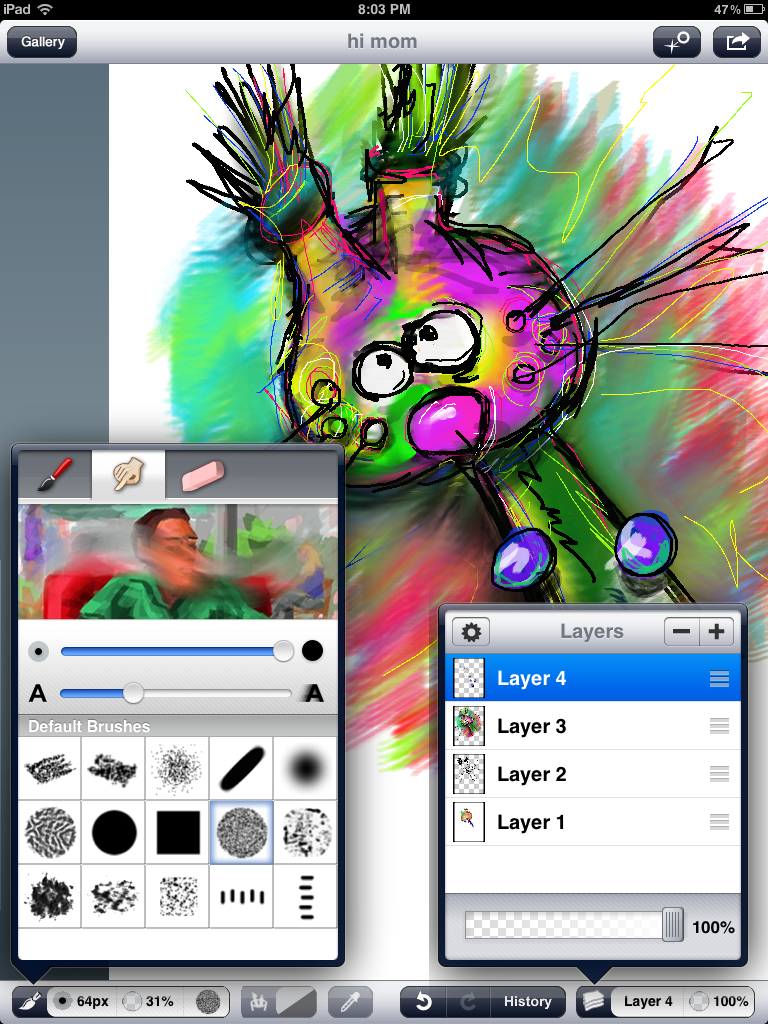
If you're looking for something a little more advanced, but still easy to us, try Layers. What I like about layers is how simple it is. It has a brush, an eraser and a smudgy finger. That and of course, layers.

The version I'm using only allows for four layers but that is a good number when you are just starting out. Layers has a better set of brush styles than Art Set but not so many that you can't decide what to use. The brushes are adjustable, again just enough to get started without complicating life.

The best feature by far is Layers smudge tool. It just seems to work better than smudge tools on other apps. You can adjust the brush size and pressure as well.


Sketchbook Pro is one of two apps I've already purchased for my art classes at Apex High School. One of the nice features that many drawing apps come with is layers (layers as a tool not to be confused with Layers the App). Layers, which are transparent, allow the artists to draw or paint on top of of drawings. For example, you can put a line sketch on a bottom layer and then paint in color on a top layer. The beauty of layers is, they can be turned on or off while the artist is working. Layers can also moved above or below a layer. Sketchbook Pro also also four different layer modes including multiply, add and screen. you can even adjust the opacity of the layers. you can see how much more rich and complex this app is already.

 Another really nice feature of Sketchbook Pro is all the different brushes it comes with. In the image above you can see the 8 little grey icons. These represent some of the different brushes available. I can swipe that menu and reveal more brushes. Plus I'm pretty sure I can add more brushes (though I haven't tried that yet). Sketchbook Pro also allows me to adjust the opacity of the tool I'm using. This way I can spray colors on top of colors.

Sketchbook Pro even comes with a bunch of goofy stamps... clouds, little people, bugs and butterflies.. a little corny and canned but they are fun to play with. Plus, I'm pretty sure, like custom brushes, that I can create my own stamps.  

There are a lot of other exciting options that I haven't mentioned.. like the transform tool that lets you rotate and resize your image. Or the symmetry tool that mirrors on the right everything you draw on the left. Want to draw a butterfly with perfectly symmetrical wings? This tool is the trick. Sketchbook pro also provides a full range of image sending options... email it, post to Twitter or Facebook, etc...

If your just looking for something fun and easy to use, I'd recommend you Art Set. If you are looking for something a little more grown up but still easy to use, give Layers a whirl. If you're looking for a big-boy (or girl) drawing app, Sketchbook Pro is complex enough to do some serious damage.


Monday, September 10, 2012

IPad Art Apps and Homeschools


Let’s Make Art On The iPad : 

Kids love to make art. Nothing is more exciting for parents than watching their child tear into a box of crayons. It’s wonderful to participate in the engaging explanation of what they are creating. Art projects are exciting, creative and fun but they can also be messy to clean up and supplies can be costly. If you are currently using an iPad as an educational tool, you already understand the benefits of using it as a teaching tool. These five reasons will motivate you to migrating your art projects there as well.

1. Easy to learn:

As a computer arts instructor, I teach professional graphics applications.  These programs are complicated, they can take years to master. Art apps on the iPad are the complete opposite. You don’t need to be a tech guru to understand how they work. They are intuitive and your students can start making art from the first drag of their finger. 

2. Inexpensive:

Besides being easer to use, iPad apps sell for a fraction of the cost of professional computer graphic applications. Instead of hundreds or even thousands of dollars, most iPad apps retail for seven dollars or less. In fact, most apps have a lite version which will be considerably cheaper, sometimes free. 


iPad apps can also be a cost saving substitute for more expensive materials. While the iPad shouldn’t replace all art supplies, there are techniques you can create using an iPad that would be expensive to purchase if created using traditional supplies. For example, it would cost several hundred dollars to purchase an airbrush, while most iPad art apps have an airbrush effect.

3. Erasing is easy:

With the exception of a pencil an eraser, no media is easier to make changes in than digital art. all art apps have some sort of undo button. With most you can back up several steps, erasing the last five or so paint stokes you created. Try that with crayons or tempera paint.

4. Clean up is a breeze!

Cleaning up after painting means cleaning brushes, dumping water, wiping up spills and putting away bottles of paint. cleaning up after painting on an iPad means clicking a button. Click once to save your creation, click again to close the app. An added benefit is the ease of mind knowing you’ll never ruin the carpet by spilling iPad paint. Go ahead, paint in the living room.


5. Storage is simple:

There is only so much room on the fridge for showcasing art and only so much attic space for storing older art. With iPad apps, you can save everything electronically and still print the best ones to hang on the fridge. Sharing is also a breeze as most apps have “one-click email” and “post to Facebook” options. Create a digital portfolio online and save more attic space for those boxes of holiday decorations. 


If you are totally new to world of digital painting, selecting the right app can be overwhelming at first. Look for apps that have free versions. If you like the app, you can always upgrade to the full version later. 

Coming soon: three of my Favorite iPad Art Apps!